Text to Figure
Describe the main elements, their labels, and how they relate to each other. Use the first result to check the visual story.
Tools / Scientific illustration
Generate a scientific figure from a description or reference image, or convert an existing figure into an editable SVG or PowerPoint file. Revise labels, arrows, and shapes in Miss Formula Studio.
Interactive SVG demo
Try editing the figure shown below. Select a label, shape, or arrow to see how you can move or change individual elements directly in the browser.
AI figure generation
Start with what you already have. Build a graphical abstract from a description, carry over a layout from a reference, or turn a hand-drawn workflow into an illustration you can refine.
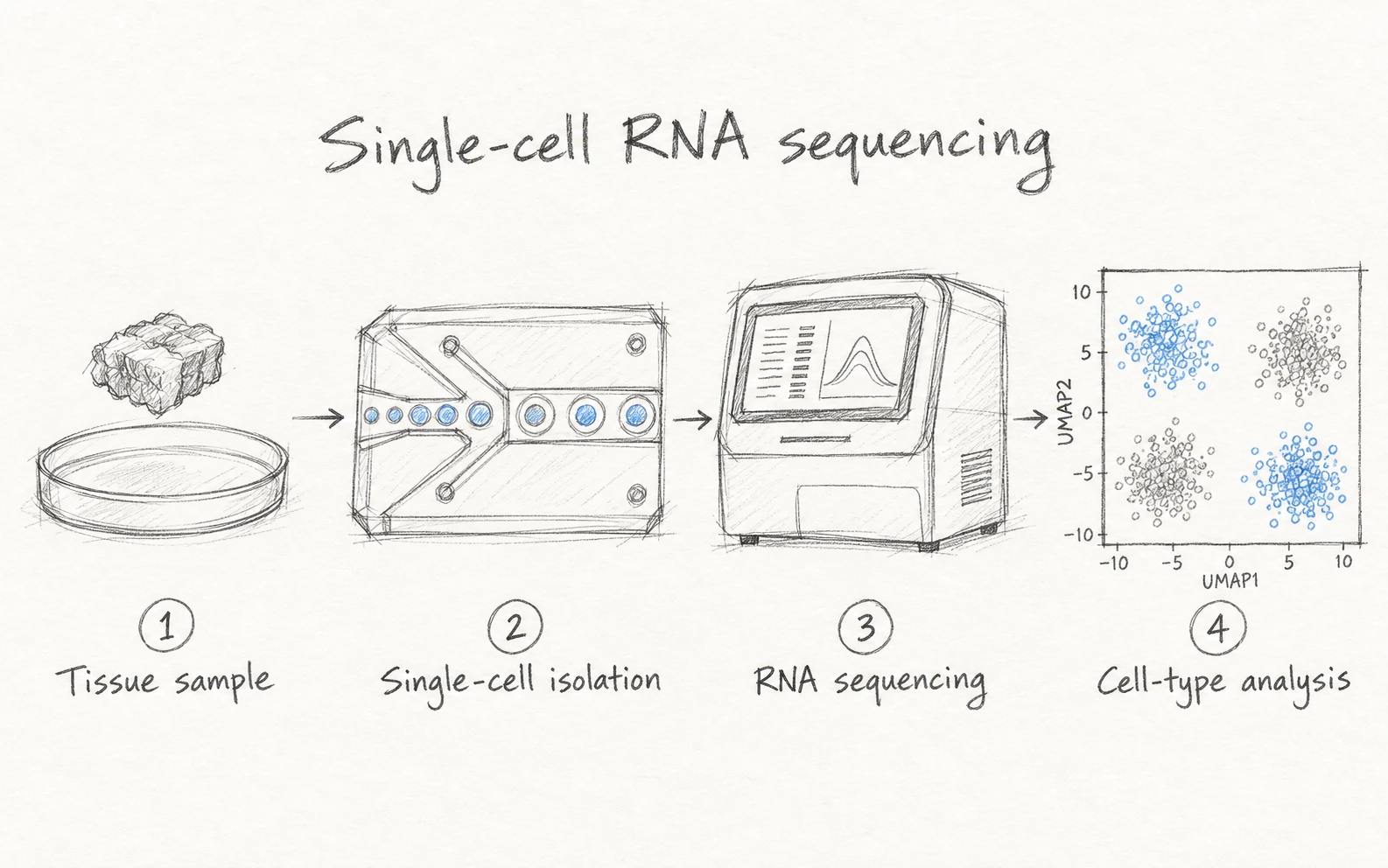 Sketch input
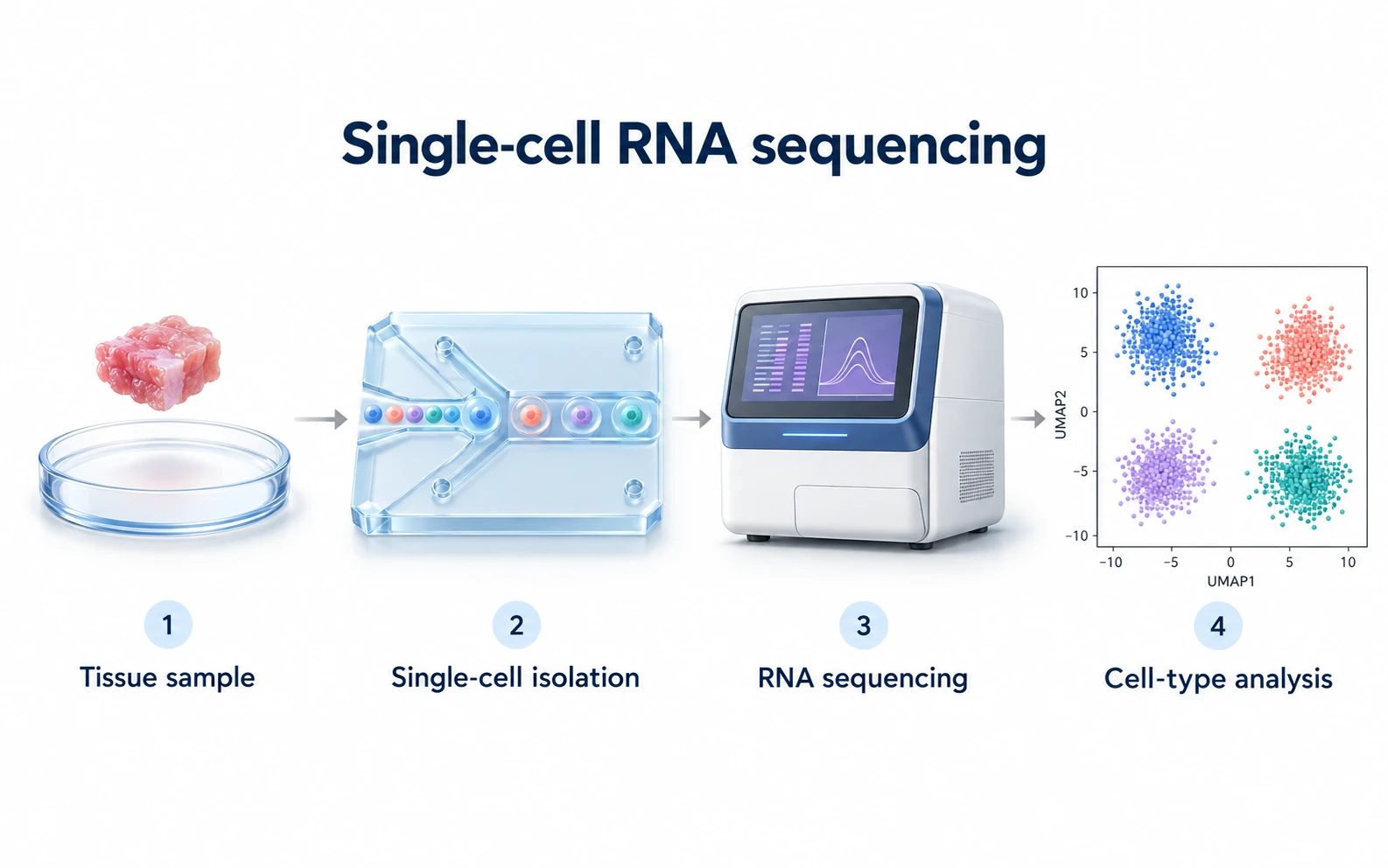 Generated figure
Describe the main elements, their labels, and how they relate to each other. Use the first result to check the visual story.
Provide a reference image and specify which parts of the composition to carry into your new figure.
Upload a sketch that shows the intended layout. Keep the arrangement and refine the appearance for your paper, poster, or slides.
Upscale an existing figure and export it in 4K or 8K when you need a larger image for a poster, cover, or print layout.
To revise individual elements, convert the generated image or an existing PNG or JPG to a structured figure, review the result, then export SVG or PowerPoint.
Revise supported labels, arrows, shapes, and colors. A small correction can stay a small edit, even late in a revision.
Start a new illustration or bring an existing figure into Studio, then refine the converted elements in the browser.
Take the SVG to a vector editor or use the PowerPoint export when the figure needs to stay editable inside a slide deck.
Update a pathway label, reorder panels, or adapt a paper figure to a poster without rebuilding the whole layout.
Use the same Miss Formula workspace for source finding, citation checking, and document conversion.
Academic workflows worldwide
Students, researchers, and educators use Miss Formula to prepare figures, check references, and work with equations for papers, presentations, and teaching materials.
Summaries of how researchers and students use Editable Figure Maker and other Miss Formula tools in their own work.
Michael started with a reference figure and opened the generated version in his browser. The layout was already in place, so he could focus on correcting a few labels before moving on with his work.
Carlos brought his figure into PowerPoint for a presentation. Because the shapes and text were still editable, he could change the colors on the slide and keep the panel he had already put together.
YunKai uses the converter on dense mechanism diagrams that go through several rounds of revision. Keeping arrows, labels, and grouped elements editable makes those revisions easier when parts of the diagram need to change.
Anna starts with a description, generates a figure, and edits it in the browser before adding it to her thesis or slides. That sequence fits the way she already prepares figures for her academic work.
James used AI Source Finder to search for papers from a draft written in Chinese. The English queries were better than the keywords he would have entered himself, and he also runs Citation Checker before submitting.
Maya used AI Source Finder to add references to a paragraph in her literature review. She then converted the equations in Miss Formula, which let her handle both steps in the same place.
Common questions about generating, converting, and editing scientific figures.
It generates scientific illustrations and converts existing figure images into a structured figure you can edit in the browser and export as SVG or PowerPoint.
Yes. The editor above loads an editable scientific SVG. Select and move a shape or try editing a label.
You can revise supported text labels, arrows, shapes, and their placement. Check the conversion against the original, especially where it has small text or overlapping elements.
Yes. Open Convert in Studio, provide the generated image, and review the reconstructed elements. Refine the result in the editor and export it as SVG or PowerPoint.
Choose SVG for scalable vector graphics and further editing in tools such as Illustrator or Inkscape. Choose PowerPoint if you plan to adjust the figure directly in a slide deck.
Start with a prompt, sketch, or existing figure in Miss Formula Studio.
Open Editable Figure Maker